




EnSight Tutorials PDF Print E-mail

ensight_v8GUI CEI offers several free tutorials that help you understand EnSight's functions. Below you will find tutorials on basic loading of data and visualization, feature extraction, transient data, custom operations, biomedical data analysis and advanced features.


Basic Load/Visualize 

A simple tutorial on how to use EnSight 8.0

This tutorial provides a step-by-step demonstration of basic EnSight operation. After successfully completing this tutorial, you should be able to start EnSight, read a dataset and load a model, transform objects in the Graphics Window, reset transformation, work with parts and change part attributes, save an image to a file, and exit EnSight.


A two part tutorial on how to use EnSight, specifically for CFD 

Part1: This tutorial provides a step by step instruction for performing many of the basic post processing operations, particularly those relevant to CFD analysis. Part 1 of 2, this tutorial illustrates the basic loading of data, coloring parts with variables and palette operation, contour operations.
Part 2: In part 2 of 2 of the basic EnSight operation, the tutorial covers the methods used to generate annotations, vector plots, isosurfaces, streamlines, and finally the export of animations and images to external files. The interactivity of EnSight is highlighted here, as well as the introduction of feature detail editors to customize further the parts and display within EnSight.


cadreader2CAD import functionality

This tutorial exhibits the EnSight CAD import functionality. In this example, either single CAD files, or multiple assemblies can be imported into EnSight through our standard File Open functionality. This operation can be very useful to combine CAD with your analysis visualization, or as method for interrogating or utilizing CAD data by itself. If you prefer to download this screencast, right click on the link and save locally to your machine.


cpature-colorbyvariableColor by Variable
Color any part in the EnSight environment by a variable with this brief tutorial, and interactively manipulate the color palette.


annotationcolorpalePalettes and Annotations
Watch this demonstration to learn how to modify palettes and create user customized color palettes. In addition, more advanced features of annotation such as variable linked annotations, 3D arrows, and interactive query annotations are shown. 


client_server_v2

Client Server

A majority of EnSight users operate both client/server mode on a single machine. However, the power of EnSight can be greatly enhanced by utilizing one local machine as a client (good graphics, small memory), and a second machine (larger memory, but no graphics capability) to handle larger dataset sizes. Using a local machine and a secondary machine allows you to use your existing hardware more efficiently. This method is far superior to using outdated methods like “export DISPLAY”, and handles the communication from remote machines more effectively. If you prefer to download this screencast, right click on the link and save locally to your machine.


capture-mutliple-read_crop Read Multiple Cases

With the standard version of EnSight, you can read up to 16 cases into a single EnSight session simultaneously. This screen cast illustrates the ease of reading in multiple cases (same model, different results, or different models, or even different classes of simulation (eg. FEA and CFD)). This tutorial also shows some of the simple tools to allow quantification of the differences in the results, as well as ways to organize your multiple model view inside EnSight. 


keyframe Keyframe Tutorials

Part 1:

Part 2:

This tutorial illustrates the basics involved with creating keyframe animations in EnSight. With keyframe animations, the user can control the movement through/around the model, as well as control what entities are being shown during the animations. Basic and complex keyframe operations, including spline camera control, are demonstrated. In addition, this tutorial covers using these keyframe animations with EnVe, CEI’s free video editing software. Simple operations such as stringing  animations together into a single animation, adding titles, images, fades, and file format conversion (EVO to AVI, or MPEG, Quicktime, etc) is also covered. If you prefer to download the Keyframe Part 1 screencast, Keyframe Part 2 right click on the link and save locally to your machine.


copyCopy Feature

In this tutorial, we will cover the use of EnSight’s “copy” command. This will allow you to create a ‘shallow’ copy of your model parts in EnSight so that you can visualize multiple variables on a single plane. The use of multiple variables within a single display can greatly increase the understanding and analytical content of your visualization by allowing the user to compare and contrast values. This tutorial will illustrate using the Mirror Function with the original instance turned off to allow multiple variables on a symmetric part. In addition, the use of viewports and visibility per viewport is covered in the context of part copies. This allows for various viewports on a single display to illustrate multiple variables. If you prefer to download this screencast, right click on the link and save locally to your machine.


Extract-SplitExtract and Split

This tutorial explores the use of the Extract and Split operations within EnSight to further help visualize your dataset. The “extract” feature is used to pull off 2D surface elements from a 3D part if none exist. The Split function within EnSight, via the “In/Out” option in the Clip Plane, allows the user to split a single part into multiple pieces. With this part split, we  illustrate how to either color the part with multiple variables, or using the Frame Mode, open this part up like a book to visualize the interior detail that may be hidden from standard views. If you prefer to download this screencast, right click on the link and save locally to your machine.


velocity_profile_graphVelocity Profile Graph Animation
Inspection of your results in a dynamic and interactive way is one of the key benefits of EnSight. This tutorial illustrates how you can create a query of the velocity profile within your CFD results, as well as creating a dynamically updated graph of this profile. This feature is useful for not only interactive investigation into your results, but also allows you to output to an animation for presentation.


Custom Operations 

fluent-particleVisualize FLUENT particle tracks in EnSight

In this tutorial, we will illustrate how to take your particle track information generated in FLUENT and visualize within EnSight. We provide step by step instructions on exporting your data from FLUENT, then show you how to use EnSight’s external translator, and finally read the data into EnSight. Once in EnSight, we will illustrate how to visualize, interrogate, and analyze this particle track information within EnSight. 


userdefinedtools_v2User Defined Tools
Customization of EnSight using the user defined tools capability. Tutorial demonstrates the use and creation of new icons within the ‘UserDefinedTool’ menu system.  


capture-clipcreateFlow Field Clip
In this short screencast, the basics operation of coloring parts, adjusting the color scale, and the generation of clip planes is covered. Utilizing the dynamic and interactive nature of EnSight, the use of Clip planes can easily allow the user to query off-body values within your simulation.


detailedpartlistDetailed Part List

In EnSight 8.2, you can now utilize a detailed part list for part list manipulation. This feature allows the user to bring more detailed part information into EnSight, and be able to select parts based on this new information. The part list can further be organized into groups and subgroups to allow the user to classify and group different parts within the model. Detailed part names, descriptions, and material properties can be specified for each part and/or grouping.


vectorglyphsVector Glyphs

This tutorials shows users how to add discrete force vectors or moment vectors into your EnSight visualization. These force and moment values are read in from an external file and can be viewed with the 3D Arrow portion of the Annotate tab. This tutorial illustrates the file format used to read in this data, as well as how to display these values and customize their representation inside EnSight. You can download this example dataset to follow along.


aeroanalysis_smAerodynamics Analysis

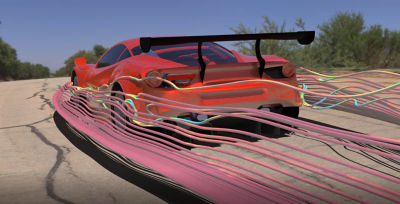
This tutorial shows users how to generate new field variables like Cp and “Downforce per unit area,” which add greatly to the understanding of where downforce and lift are being generated. In addition, this tutorial illustrates how to generate Cp graphs, and spanwise loading. The spanwise loading takes the previously shown downforce variable and integrates this quantity over the section, sweeping this section along the span of the wing and generating a graph of the resultant load distribution. If you prefer to download this screencast, right click on the link and save locally to your machine.


Video_embeddedEmbedding External Video within EnSight
Importing external video content into an EnSight session is easy to do, as shown in the following tutorial. Importing external video allows you to include experimental recordings, live footage, or additional substance to not only your animation, but also to interactive sessions of EnSight. The external video is automatically synced in absolute time and time increment, so that both the computational animation and the external video play together. Further background information can be found on this page, EnSight QuickTools Part I: Animated Annotations and CSV Files.  


Feature Extraction

flowfeatureextractiFlow Feature Extraction
In this tutorial you will learn the use of EnSight’s vortex core, separation and attachment line, and boundary layer extraction tools.


capture-quantify-reverse_smQuantify Reverse Flow
This tutorial teaches you how to use the integrate command and limits to quantify the amount of reverse flow through a plane.


elevatedsurfaceElevated Surface Creation
Tutorial shows the creation of an elevated surface to generate a 3D representation of the scalar values on a surface. In this instance, the velocity magnitude is used to generate the elevated surface to help illustrate the wake region. Elevated surface can also be used from a computational surface to help visualize boundary layer growth and development.


Transient Data

minmaxtemporalTransient Min/Max/Average Temporal
Tutorial demonstrates how to calculate and graph minimum, maximum and average data on parts for transient runs. In addition, this tutorial displays the use of temporal average function with transient data to produce an average over time for your domain.


captureTransientMaxTransient Max
Part 2 in the sequence of Transient post processing. This short tutorial focuses on extracting quantitative temporal information (Max over whole domain and time) from a transient run. This tutorial also illustrates how Python scripting can be introduced to perform macro operations within EnSight, greatly enhancing the power and functionality of EnSight to do repetitive or complex tasks with ease. Click to download the example python file.


Biomedical Data Analysis
aheart_smMedical Visualization of the Heart
In this tutorial for analysis and quantification of medical data, EnSight is used to visualize a transient medical dataset. EnSight is used to visualize the velocity at any arbitrary location, as well as quantify the flow rate through any region of interest. Although this example shows a single plane used for investigation, any number of planes can be displayed at once, with multiple graphs of flow rate over time for each region of interest. If you prefer to download this screencast, right click on the link and save locally to your machine.


randy-petNIfTI Import, Component Mapping and Isosurfaces with Medical Data
In this EnSight tutorial the NIfTI/ANALZE format is first imported into EnSight. The tutorial then goes through the process of using EnSight’s unique texture mapping functionality to examine two different variables at once with component mapping in the HSV space. Finally, the tutorial shows how using an isosurface of one variable, colored with a second variable, will allow the user to more easily identify regions of interest while interrogating variables on this surface. Dataset courtesy of Randall Frank, CEI. 


Advanced Features

test2dplotCommand Test 2d Plot
This tutorial exhibits the EnSight command “ test: special 2d plot” to automatically generate graphs based on integrated values on a plane swept through the model. This type of command is particularly useful for generating graphs of mass flux average temperature through the domain, or average swirl velocity, etc.

5 minutes, 42 seconds 


viewportBackground

This tutorial shows users how to customize the Viewports within EnSight. Viewports can help to demonstrate multiple views of your geometry at once, or illustrate icon locations for your clip planes. In addition, the background of the viewport can be modified to include experimental data/images or add additional presentation value by implementing images for the background, or to make title bars for your visualization.


capture2dto3dExtrusion
EnSight’s extrusion functionality can take a 2D dataset, and replicate this into a 3D domain. This functionality allows the user to display and represent their 2D problem (in this example axi-symmetric) in a 3D sense, to communicate and visualize this data in 3D. If you prefer to download this screencast, right click on the link and save locally to your machine.


splinesSplines

This tutorial illustrates a few methods for creating splines within your model. We will cover the generation of splines via screen picks, xyz input, or from streamlines. We will then illustrate using splines to control clip planes (clip planes along a spline), as well as camera movement. Finally, this tutorial will illustrate using splines for dataset queries to allow more customized extraction of data from your results. If you prefer to download this screencast, right click on the link and save locally to your machine.


capture-textureTextures

In this tutorial we illustrate two more advanced features of texture application; single sided textures and application of textures onto a moving grid geometry. First, using the tool selection and the subset parts, the user can apply the texture to a portion of a model part, thus allowing the texture to show only on a single side, rather than both sides (by default). Second, for transient moving grid models, we illustrate how the texture can be tied to the geometry so that the texture remains fixed relative to the geometry. If you prefer to download this screencast, right click on the link and save locally to your machine.


contextContext File Example
EnSight context files can be used to duplicate the current EnSight state with the same or a different, but similar, dataset.  The context mechanism is more generic than command files, as it allows models with different parts or variables to be used. User Manual Section 2.7 has additional information on the use of Context Files. This tutorials provides an example of how the use of Context files can improve your efficiency of analyzing and post-processing your datasets.


valid xhtml? | valid CSS?

Joomla Templates by Joomlashack